
How to set up Tailscale on Ubuntu and access it remotely with NoMachine
Introduction
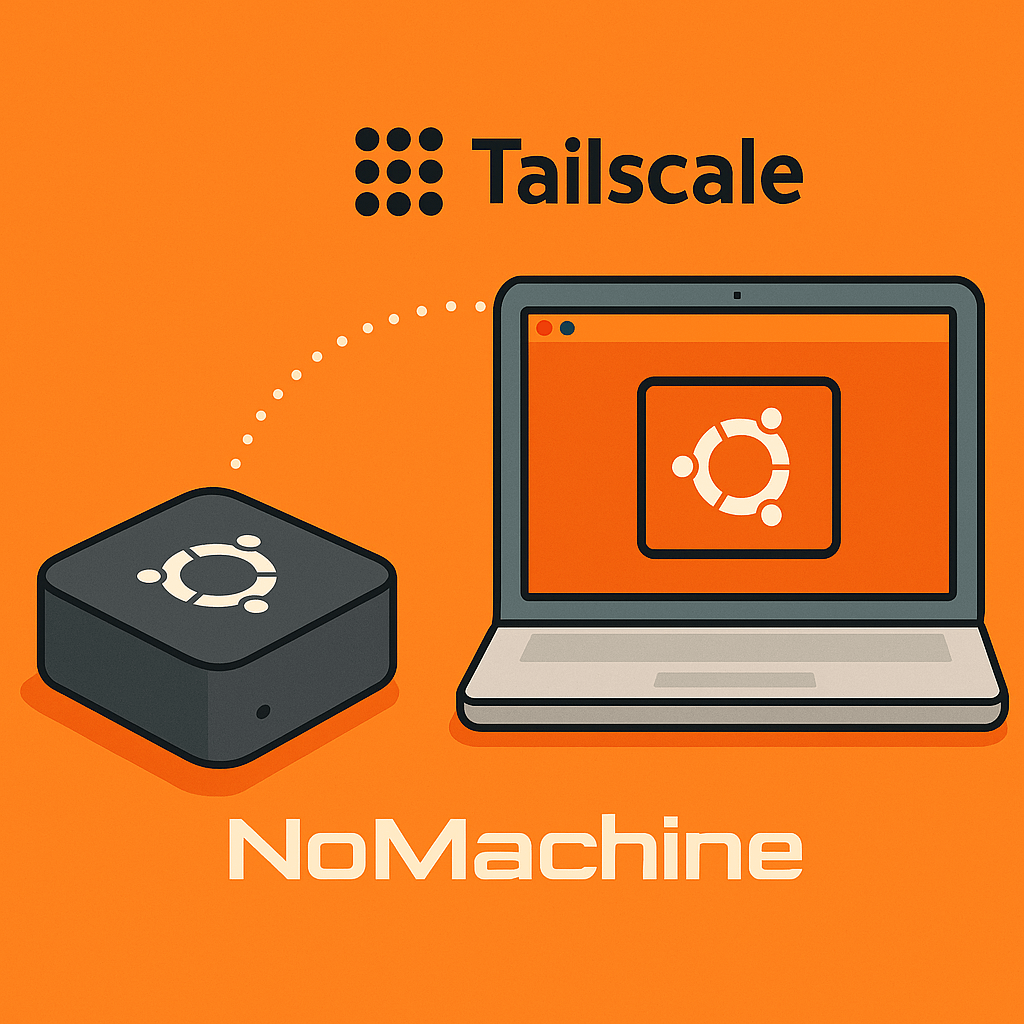
If you’re running an Ubuntu PC at home or in the office and want to access it remotely — whether from your MacBook, Windows PC, or another Linux machine — you can combine Tailscale and NoMachine for a simple, secure, and fast setup. This tutorial shows you exactly how to do it.
What You’ll Need
- An Ubuntu machine (server or desktop) you want to access remotely.
- A Tailscale account (you can sign up free at tailscale.com).
- NoMachine installed on both your Ubuntu PC and the computer you’ll connect from.
Step 1: Install Tailscale on Ubuntu
First, open a terminal on your Ubuntu machine and install curl if you don’t already have it:
sudo apt update
sudo apt install curl -y
Then install Tailscale using their official script:
curl -fsSL https://tailscale.com/install.sh | sh
Once installed, bring Tailscale online and log in:
sudo tailscale up --ssh
You’ll be asked to authenticate via a browser — sign in with your preferred account (Google, Microsoft, etc.). Once done, you can view your Tailscale IP:
tailscale ip -4
You should see an IP similar to 100.x.x.x. This is your secure private Tailscale address.
Step 2: Make Tailscale Start Automatically on Boot
To ensure your Ubuntu PC reconnects to your Tailscale network automatically after every reboot, enable the service:
sudo systemctl enable tailscaled
sudo systemctl start tailscaled
sudo tailscale up --ssh
This will keep your Tailscale connection active in the background at all times, perfect for headless or always-on systems.
Step 3: Install NoMachine on Ubuntu
NoMachine provides the graphical desktop access. Install it using the following command:
sudo apt update
sudo apt install nomachine
Once installed, it will automatically start the NoMachine server service. You can verify that it’s running:
sudo systemctl status nxserver.service
NoMachine uses port 4000 by default and runs automatically after system startup.
Step 4: Connect Remotely Using NoMachine
Now that your Ubuntu PC is ready, you can connect from your remote machine (Mac, Windows, or another Linux system).
On your Mac or Windows computer:
- Install Tailscale from tailscale.com/download and sign in using the same account.
- Install NoMachine from nomachine.com/download.
- Open NoMachine, click Add, and choose Protocol: NX.
- In the Host field, enter your Ubuntu Tailscale IP (e.g.,
100.64.15.2). - Keep the Port as
4000. - Click Connect and log in using your Ubuntu username and password.
You’ll now have full remote access to your Ubuntu desktop — with smooth graphics, audio, and file transfer support — all routed securely through Tailscale’s encrypted network.
Step 5: Verify Everything Works
To confirm your Ubuntu PC is online and reachable via Tailscale, you can use the command:
tailscale status
This will show your connected devices and their IPs. Your Ubuntu Mini PC should appear in the list, and you can now access it anytime — no router setup or port forwarding required.
Does Tailscale Affect Your Network?
No — Tailscale does not interfere with your normal internet connection. It only encrypts traffic between your Tailscale-connected devices. Your regular web traffic continues to flow through your local network as usual.
Conclusion
By combining Tailscale and NoMachine, you get a simple, secure, and reliable way to access your Ubuntu PC remotely from anywhere. Tailscale takes care of the secure connection, and NoMachine gives you a responsive desktop experience. Together, they make remote Linux access a breeze — no VPNs, no static IPs, and no firewall headaches.
Further Reading
Leave a reply
Loading comments…